Using Cursor to Build a Web App With an MCP Connector
MCP lets AI coding assistants see your project's real database, APIs, and files.
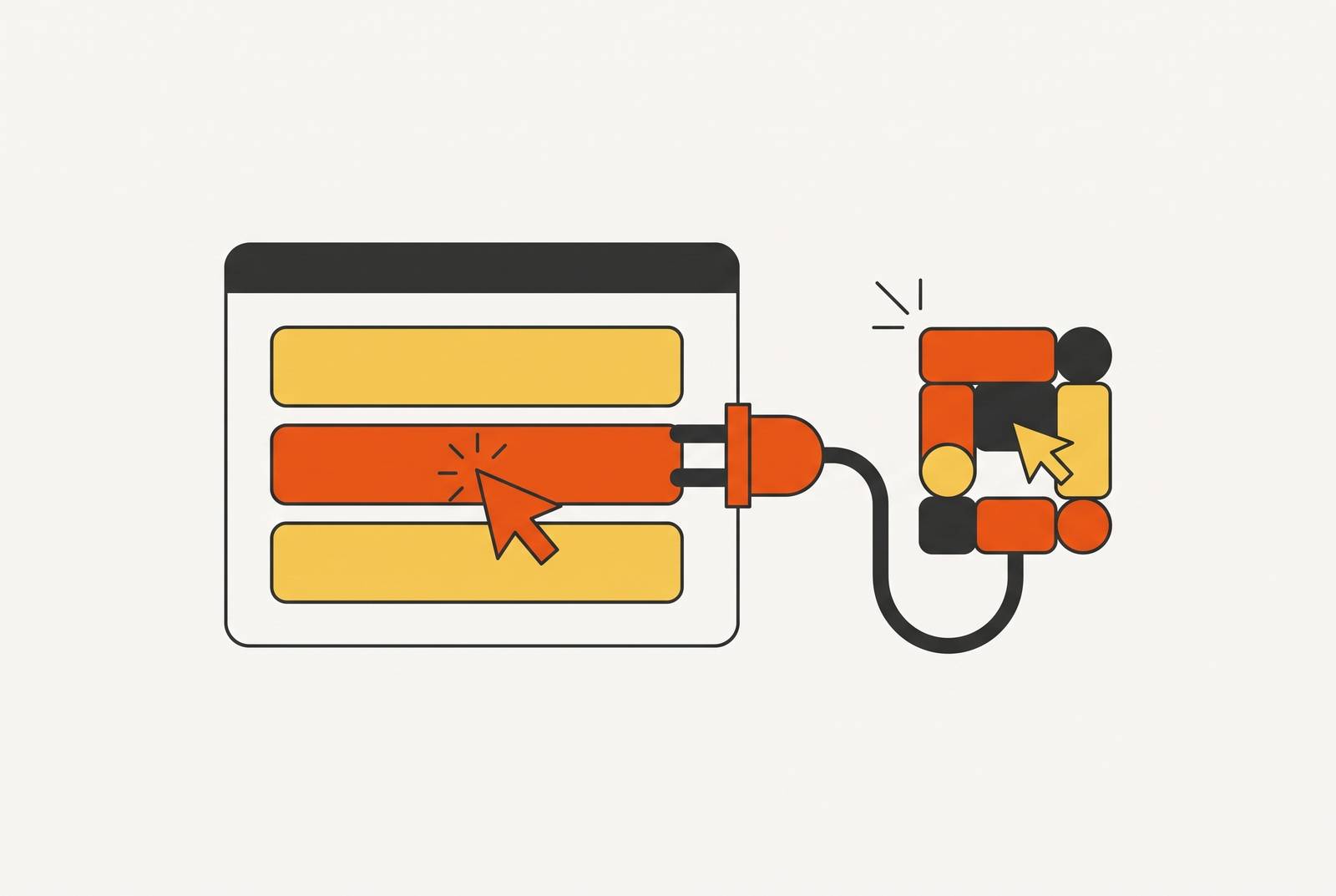
The biggest limit on an AI coding assistant has nothing to do with how well it reasons. It's blindness to the actual project sitting in front of it, and MCP exists to fix exactly that. Without it, every session in Cursor starts from nothing: the database schema gets re-pasted, the folder structure gets re-explained, the shape of an API response gets typed out again, because the model has no eyes on the disk, the live database, or any outside service unless a person puts it there by hand. That's not a minor inconvenience to work around. It caps what the tool can do in the first place: a model that cannot see a schema cannot write SQL that actually runs against it, and a model that cannot call an API cannot debug a real integration with it.
Anthropic put out the fix in November 2024, releasing the Model Context Protocol as an open standard and describing it as a USB-C moment, one connector that works everywhere instead of a drawer full of incompatible adapters. Before that, every AI tool solved the same connection problem on its own: a one-off database connector here, a different one there, a dozen incompatible builds each with its own maintenance burden. MCP collapsed all of that into a single spec. The deeper shift is in where the capability lives. A traditional plugin adds a feature to an application. MCP extends what the model itself can reach for, and the model decides on its own when to use a tool, without a builder spelling out the command each time. That difference is what the rest of this guide is built on.
Why Cursor Is the Right Host for an MCP-Connected Build
Cursor's growth makes it a serious platform for AI-assisted app building. For the kind of build this guide walks through, Cursor has a practical edge over chat-only AI tools: it runs local stdio-based MCP servers natively, using a command like "node" or "npx," where chat-only tools need a bridge or a hosted workaround to do the same thing.
Builders already running on Cursor back this up. Pieter Levels took fly.pieter.com from idea to significant annual revenue in 17 days, and his full portfolio now brings in millions of dollars a year with zero employees, built on a stack with Cursor at the center. Marc Lou codes primarily in Cursor paired with Claude, letting the AI handle what he calls the boring CRUD and Tailwind styling while he keeps the architectural decisions for himself. These are fast proof points, not case studies to dwell on. What they establish is that Cursor is where this kind of build happens in practice.
The economics matter as much as the track record. A full AI tool stack for a one-person company costs a fraction of what a traditional engineering team runs, and that cost gap is what makes an MCP-connected Cursor setup a business decision rather than a nice-to-have productivity habit. The rest of this guide assumes that decision has already been made and gets into how to build on top of it.
How MCP actually works inside Cursor before touching a config file
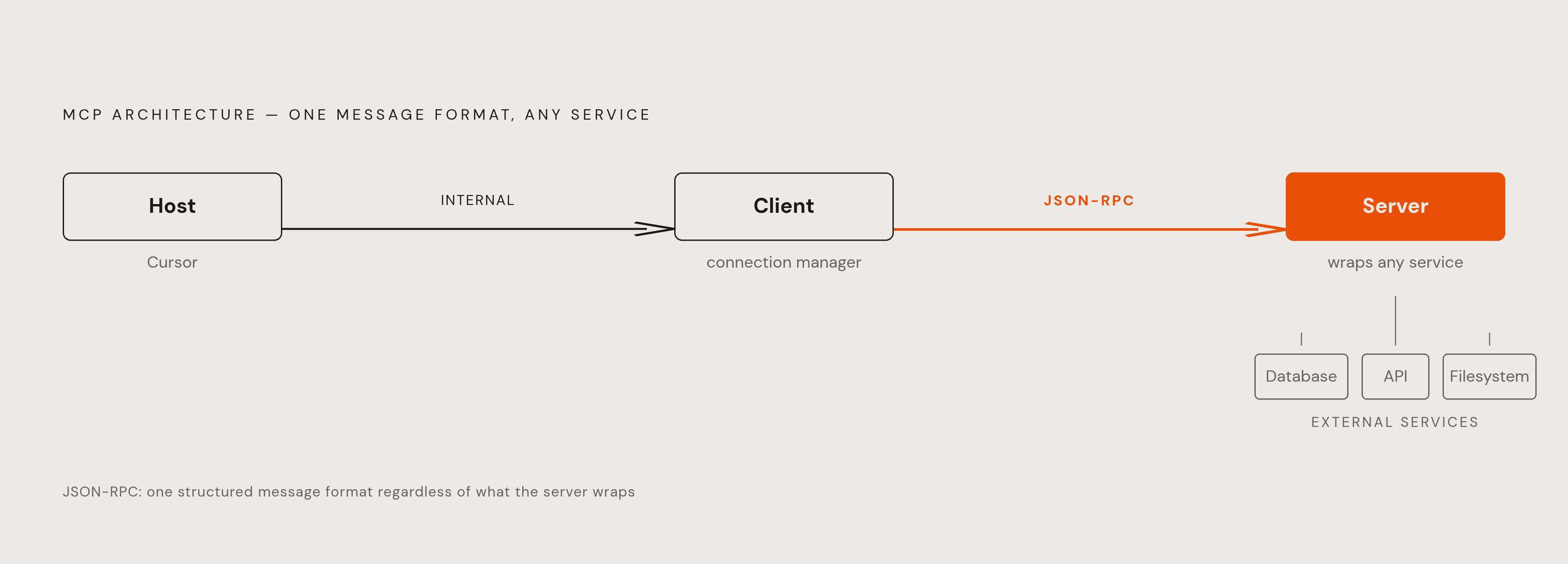
Before opening any config file, three pieces of architecture are enough to make sense of everything that follows. MCP runs on a host, a client, and a server, and understanding how those three talk to each other is the whole conceptual foundation a non-coder needs.
The host is the AI application itself. In this setup, that's Cursor. The client lives inside the host and manages the connection to whatever server it's talking to. The server is a small program that wraps an external service, whether that's a database, an API, or a filesystem, and exposes it in a form the model can use. They communicate using JSON-RPC, a structured message format that stays the same regardless of what is on the other side of the connection. A standard exists precisely to keep that consistency across every connection.
Using a database as the example, before MCP, connecting an AI tool to a project meant pasting in table structure, explaining how tables relate to each other, and specifying which fields actually matter, every single session. After MCP, a builder can simply ask, "show me orders for user ID 123 from the last month," and the AI connects to the database on its own, reads the actual table structure, writes the SQL, runs it, and formats the results back. Nobody told it to query the database. It inferred that step from the request itself.
Two transport types govern how a server reaches the host, and the choice between them shapes setup decisions later in this guide. Stdio transport spawns a local process and communicates over standard input and output, and it's the right choice for servers running on the builder's own machine. The config format for all of this is shared across clients: Cursor and Claude Desktop use the same underlying JSON structure, so learning it once in Cursor carries over to any other MCP-compatible client. A server built to the MCP spec runs from the same package regardless of which client it's added to. Nobody writes a separate server for each client.
Opening Cursor's MCP settings and adding a first server
The first server is a short process to get running, and settling on which of two config scopes to use first prevents most of the confusion people run into early. There are two scopes to choose from before creating anything. A global config, stored at ~/.cursor/mcp.json, applies across every project and fits servers that are broadly useful no matter what's being built, like GitHub access or web search. A project-level config, stored at .cursor/mcp.json inside the project folder, scopes a server to that codebase alone, which is the right place for a database connection or anything tied to one specific build.
The config itself is plain JSON. A minimal entry needs a "command" key naming the executable to run, such as "npx," an "args" key listing the package and any flags it needs, and an "env" key holding any API keys or connection strings the server requires. A simple example, using a time server, might set "command" to "npx," "args" to the package name, and leave "env" empty if no credentials are needed. That's the entire shape of it: one JSON block per server, sitting inside a "mcpServers" object.
Remote servers use a slightly different shape. Instead of a "command" key, they use a "url" key, with an optional "headers" key for authentication, and the same JSON file handles both transport types without any special casing. Setup has gotten faster recently, too: many servers now ship with an "Add to Cursor" button right on their documentation page. Clicking it opens a dialog with the server name, transport, and URL already filled in, and clicking Install writes the JSON automatically, no manual editing required.
Confirming a server is actually live takes one glance. A green status indicator shows up in the MCP settings tab once a server is active. If that indicator doesn't appear, the most common cause is a stale connection, and restarting Cursor usually clears it.
Connecting the integrations that make a real web app possible: database, design, payments, and version control
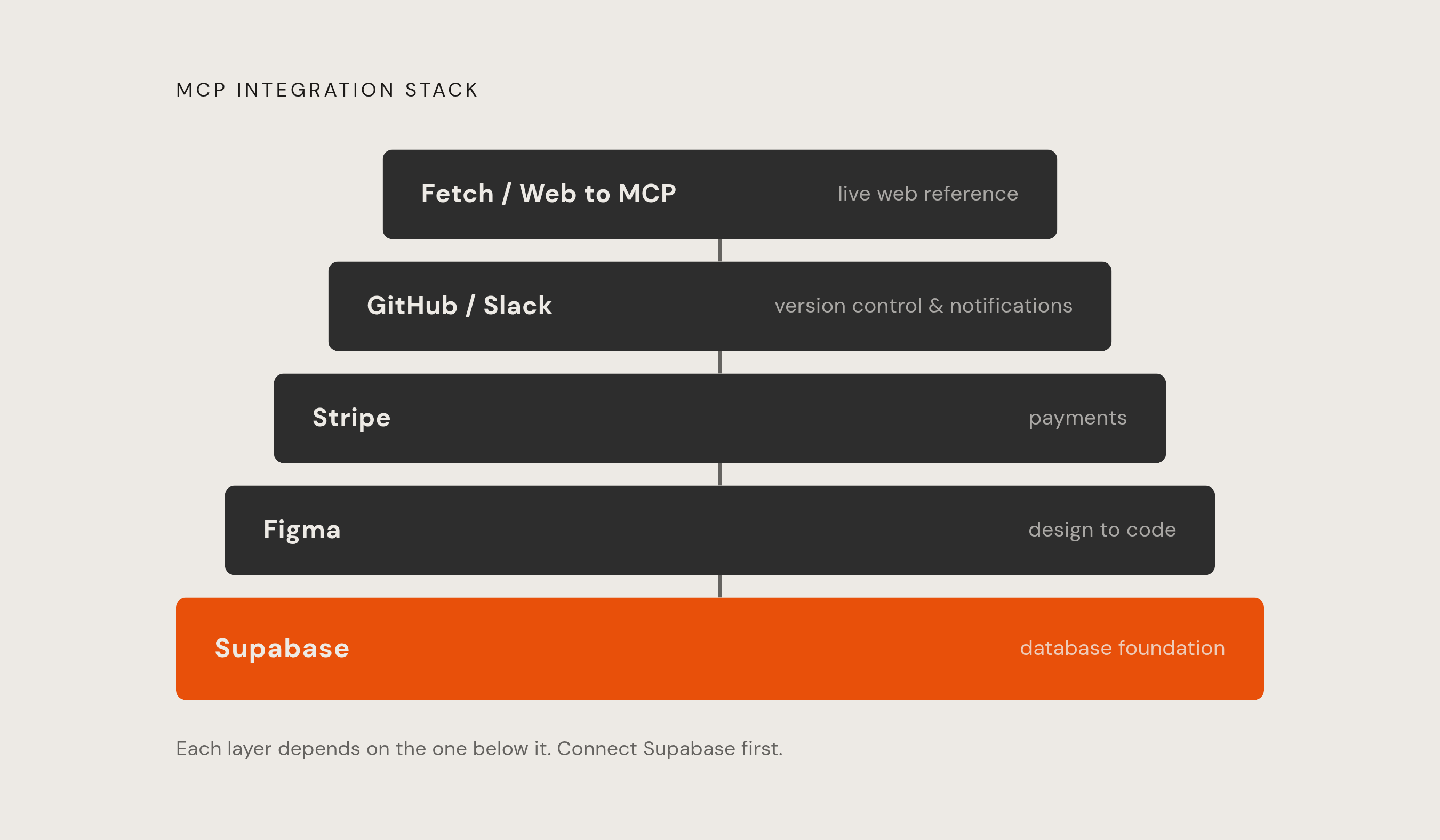
Four connections turn an empty Cursor project into a shippable, connected web app without ever leaving the chat window: database, design-to-code, payments, and version control. Each one builds on the last.
Database: Supabase MCP
Start with the database, since everything else in the build depends on it. The Supabase MCP Server bridges AI tools and Supabase projects directly, letting a builder spin up projects, design tables, query data, and manage configuration through plain conversation instead of manual SQL. Schema design that used to take a session of writing SQL by hand now happens in a five-minute back-and-forth inside the chat window.
One security detail matters enough to flag before writing anything. The MCP server connects using the service role key, which bypasses Row Level Security entirely. Write operations belong on a development branch or a local Supabase instance, never pointed directly at production. Read-only mode restricts the connected PostgreSQL user so it can't run INSERT, UPDATE, DELETE, or DDL statements, and that's the safer default for anyone still shaping a schema.
Design-to-code: Figma MCP
With a database in place, the next connection turns a design file into working code. The Figma MCP Server connects through the same MCP settings path as everything else, and once it's wired up, Cursor reads the Figma file directly and produces working front-end code from it. The quality of that output depends heavily on how the Figma file itself is built. Clean component names and proper auto layout make a real difference in how well the translation comes out. That output is editable code sitting in the actual codebase, ready to be wired to the database already connected in the previous step. A Figma file becomes a working front end, and that front end becomes a database-connected back end, all inside the same chat window.
Payments: Stripe MCP
A working front end and database are enough to start taking money, and that's where Stripe comes in. Cursor's official Marketplace includes a Stripe plugin with MCP integration built in, covering Stripe integration best practices, API and SDK upgrade guidance, and the Stripe MCP server itself. It installs in one click from the Marketplace, with no manual JSON editing needed.
Version control, notifications, and web content
Three more connections round out a build that's ready to ship and maintain: version control, notifications, and web content, through GitHub, Slack, and Fetch. GitHub MCP surfaces unresolved issues, open pull requests, and branch management directly in the chat window, so version control never requires switching to a browser tab. Slack MCP posts deployment notifications the same way, straight from the build environment. The Fetch Server pulls articles or documentation off the web into a format the AI can reference directly, which comes in useful mid-build when checking an API's docs or a changelog for a breaking change.
Visual inspiration: Web to MCP
Anyone building against a visual reference rather than a Figma file should add one more connection. Web to MCP connects through the same configuration path as every other server here, and it works through a Chrome extension that captures any website component, its DOM structure, its computed CSS, and a screenshot, then sends all of it to Cursor through a unique MCP URL. That removes the back-and-forth of describing what a design should look like in words. A pixel-perfect reference goes in, and a working implementation comes out. Setup: install the Chrome extension, sign in with Google, and copy the unique MCP URL from the dashboard into the project's config.
Four connections, a design pipeline, and a reference-capture tool are what separate an AI assistant that talks about a web app from one that builds it, end to end, inside a single chat window.